
See what's happening on the bands. Find the contacts that matter.
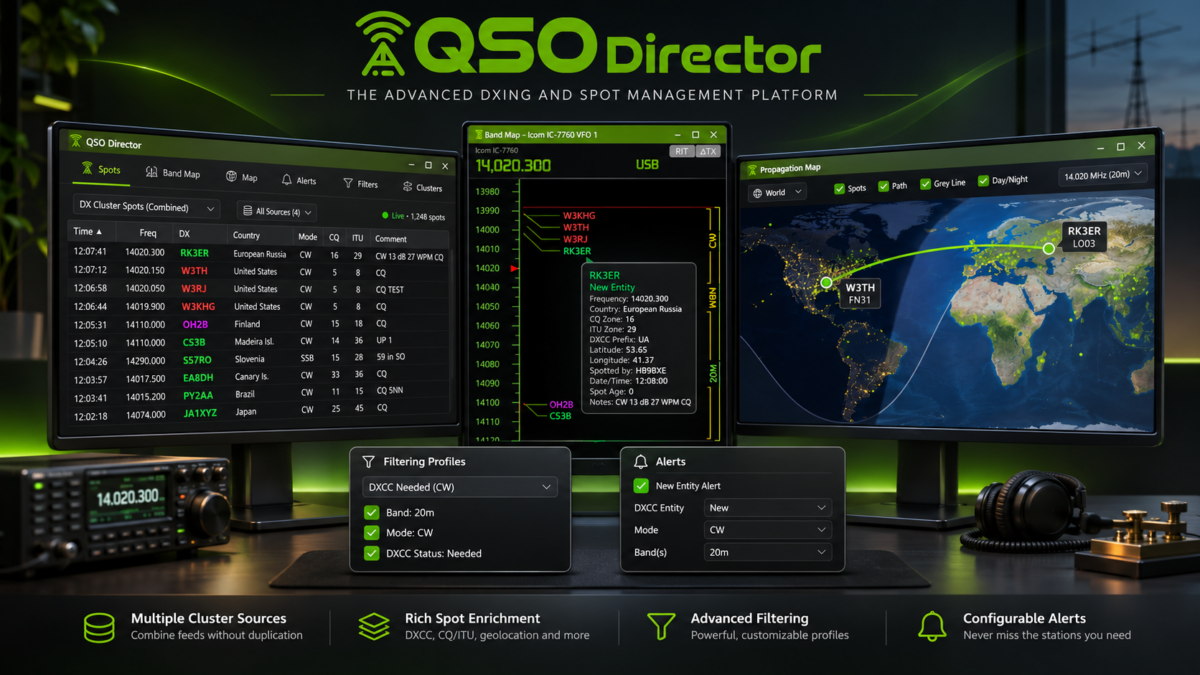
QSO Director brings together spots from multiple DX clusters, the POTA cluster and digital-mode decodes into one connected view of on-air activity. With duplicate handling, worked/needed status and detailed station information, it's easier to identify the contacts that matter to you.
Explore activity through flexible Band Maps, view stations geographically and use powerful filtering and configurable alerts to focus on the opportunities you're interested in. Follow individual radios or VFOs, or keep an eye on other bands independently.
Found a station you want to work? Select its spot to tune your associated radio and automatically populate QSO Entry, taking you from discovery to logging in one connected operating environment.
Available for Windows, macOS and Linux.
UNIFIED DX CLUSTER & SPOT SOURCES
Multiple spot sources. One connected view of activity.
DX activity doesn't come from just one place. Traditional DX clusters, POTA spotting information and digital-mode decodes can all reveal stations worth working.
QSO Director brings these different sources together through a single internal cluster service, consolidating incoming spots, handling duplicates and making enriched station information available throughout your operating environment.

Telnet DX Clusters
Multiple DX clusters, simultaneously
Connect to multiple Telnet DX clusters at the same time.
QSO Director combines their incoming spots, allowing you to benefit from several reporting sources without having to switch between separate feeds or repeatedly review the same activity.

POTA Cluster
POTA activity alongside traditional DX
QSO Director integrates with the POTA cluster, bringing park activation spots into the same environment as traditional DX activity.
Whether you're hunting activators or looking for DX opportunities, you can keep track of relevant activity through your existing spotting tools.

Digital Decodes
Digital-mode decodes become spots too
Your band awareness doesn't have to stop at traditional cluster reports.
QSO Director can present incoming digital-mode decodes, including FT8 and FT4, as cluster spots, allowing activity received through digital-mode applications to become part of your wider spotting environment.
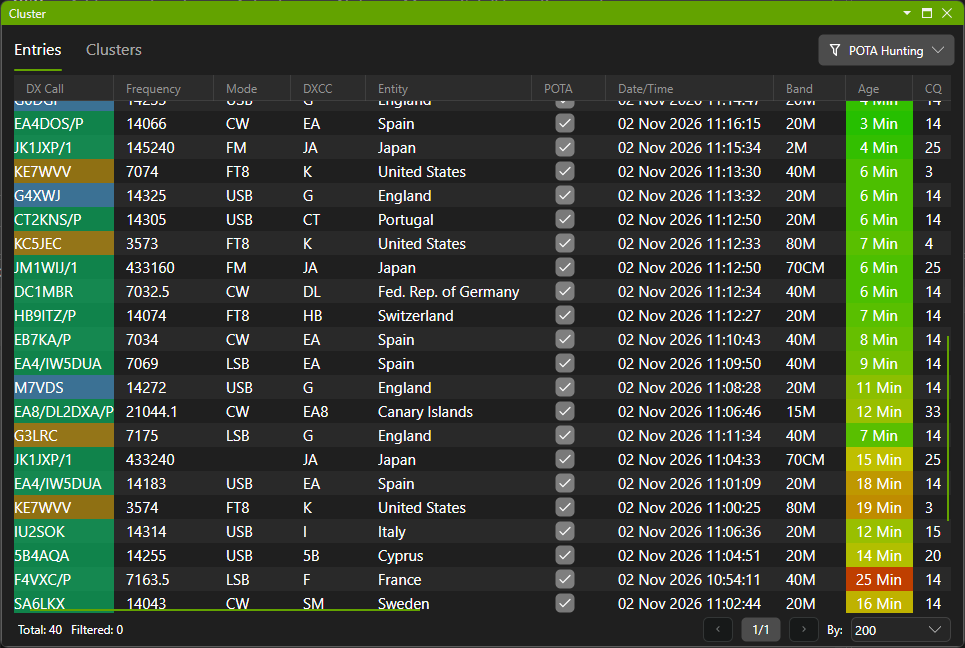
One unified service. More useful information.
Behind the scenes, QSO Director consolidates incoming activity and avoids displaying duplicate reports unnecessarily.
Spots can also be enriched with useful operating information, including DXCC entity, continent, worked status, distance, short-path and long-path bearings, and recognised activation references.
This consolidated information can then be used throughout QSO Director, from DX cluster displays and Band Maps to geographic mapping and configurable DX alerts.
One connected source of activity, with the flexibility to view and filter it in the way that suits your operating style.
INTELLIGENT DX CLUSTER FILTERING
See the contacts you need, not just every station being spotted.
Not every DX spot is relevant to the way you operate. Some stations you've already worked. Others are on bands you're not interested in, or don't match the DX, activation programmes or operating modes you're looking for.
QSO Director gives you detailed control over the activity you see, combining powerful DX cluster filtering with your own logbook history to help you concentrate on the contacts that matter.
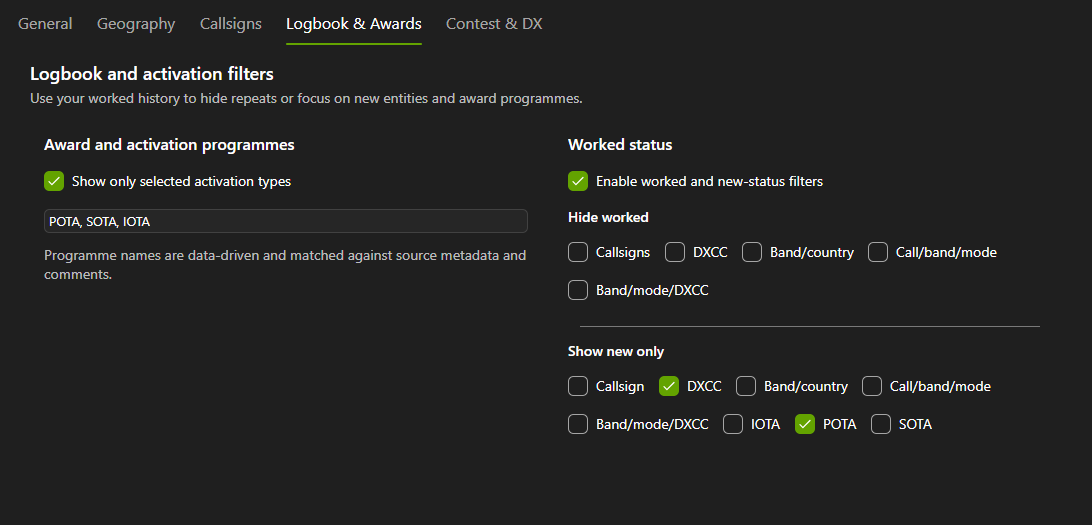
Find what you haven't worked yet
Your logbook is one of your most useful DX hunting tools.
QSO Director can filter cluster activity based on your worked history, helping you focus on new callsigns, DXCC entities and band/mode combinations rather than repeatedly working through familiar spots.
You can also filter for new IOTA, POTA and SOTA references, bringing activation hunting into the same intelligent spotting environment.
Whether you're searching for a new DXCC entity or looking to fill a particular band or mode combination, your logbook helps determine which spots are worth your attention.
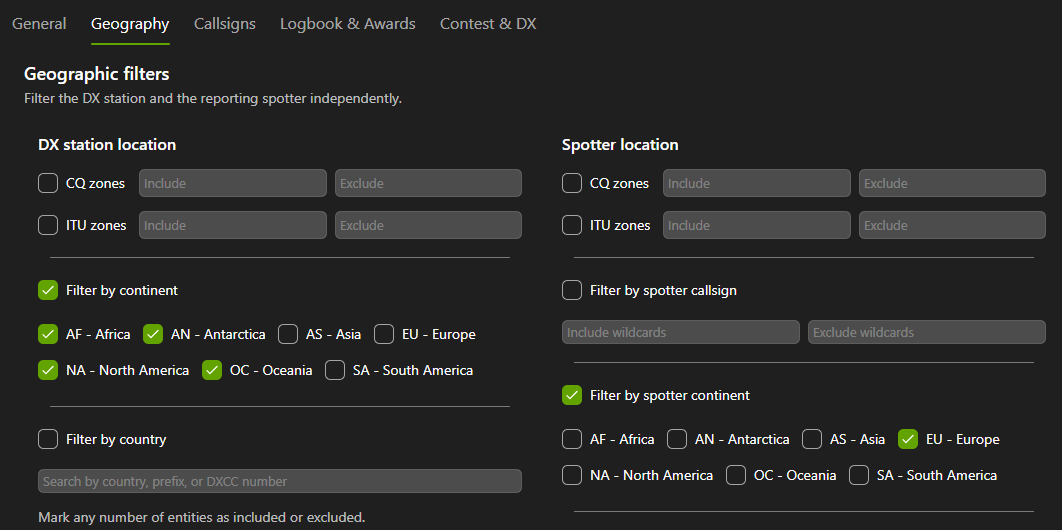
Filter by geography, callsign and operating activity
Choose exactly which activity appears in your cluster views.
Filter by band, frequency range, operating mode or submode, callsign, prefix, suffix, continent, DXCC entity, CQ zone and ITU zone.
QSO Director also lets you filter the spotted DX station and the reporting spotter independently, giving you more control over where the stations you're seeing — and the reports you're receiving — originate.
Additional options include spot age, comments, signal reports and beacon exclusion, helping you reduce unnecessary information.
Focus on the activity that interests you
Looking for something specific?
QSO Director supports filtering by activation programme, including POTA, SOTA, IOTA and WWFF. Callsign favourites and priority highlighting help you keep track of stations you're particularly interested in.
Contest-focused filtering can help reduce unrelated activity, while rare-DX highlighting uses locally available Club Log most-wanted information to draw attention to sought-after entities.
Whether you're chasing DX, hunting activations or operating during a contest, you can configure the cluster information around your objectives.
Different Band Maps. Different filter profiles.
You don't have to use the same filters everywhere.
Create multiple filter profiles and assign them to individual Band Maps, allowing each map to display a different selection of activity from QSO Director's unified cluster service.
For example, one Band Map could focus on needed DXCC entities, while another displays POTA and SOTA activity on a different band.
Filtering is applied immediately, so you can change your view of the bands without changing your underlying DX cluster connections.

One consolidated spot service. As many different views as you need.
BAND MAPS & RADIO INTEGRATION
One Band Map or many. Your station, your way.
See where stations are operating, identify the contacts you need and move straight from spotting a station to working it.
QSO Director's Band Maps display DX activity against a visual frequency scale, combining enriched cluster information with worked/needed indicators and direct radio integration.
Create as many Band Maps as you need. Associate them with individual radios or VFOs, or use them independently to monitor activity on other bands.

Follow your radio, or explore another band
Connect a Band Map to a specific radio or VFO and it will follow that radio's operating band and frequency.
Working with multiple radios or VFOs? Give each its own Band Map.
You can also create standalone Band Maps that monitor a selected band independently of your current radio frequency. Keep one map following your active radio while others monitor 20 metres, 40 metres or any other bands you're interested in.
Each Band Map can have its own cluster filter profile, so different maps can show entirely different selections of activity from the same unified spot service.
See what you've worked - and what you still need
Spotted stations appear at their reported frequencies, giving you a clear visual picture of activity across the band.
Callsigns are colour-coded according to their worked/needed status, helping you identify potentially interesting stations at a glance.
Want to know more about a particular spot?
Hover over its callsign to reveal detailed information, including the DXCC entity, country, CQ and ITU zones, geographic information, reporting spotter, spot age and available spot notes.
From spotting a station to working it
Your Band Maps aren't just passive displays.
When a Band Map is associated with a radio, selecting a spot can tune that radio to the spotted frequency and automatically populate QSO Entry with information about the station.
There's no need to manually transfer callsigns and frequencies between separate applications.
Spot the station, select it and continue working within the same connected logging environment.
Different maps. Different operating priorities.
One Band Map could focus on new DXCC entities, another on POTA or SOTA activity, and another on a specific band or operating mode.
With independent filter profiles and no fixed limit on the number of Band Maps, QSO Director lets you organise your operating environment around the activity that matters to you.
Your bands. Your filters. Your radios. All working together.
GEOGRAPHIC MAPPING & GREYLINE
Your operating world, brought to life.
See where stations are active, where you've made contacts and how daylight and darkness are moving across the globe.
QSO Director's interactive world map brings together DX cluster activity, digital-mode decodes, your QSO history and geographic information in one connected operating view.
From tracking the greyline to following a contact across the world, the map helps you understand your operating activity in a wider geographic context.

Watch the greyline and changing daylight
Visualise the changing boundary between day and night as it moves around the world.
QSO Director can display daylight and darkness, the greyline, the sunset terminator and the boundaries of civil, nautical and astronomical twilight.
These different boundaries provide valuable geographic context when exploring DX opportunities and considering how changing daylight conditions may influence radio propagation.
See DX activity across the globe
Your DX cluster information doesn't have to stay in a list or Band Map.
QSO Director can display spotted stations geographically, using worked/needed colour coding to help you identify interesting activity around the world.
Incoming digital-mode decodes, including FT8, FT4 and FT2, can also appear on the map, giving you another way to see where activity is being received.
For additional geographic reference, the map can display both CQ and ITU zones.
Your QSO history, mapped
Every contact contributes to your operating history.
QSO Director can display previously worked QSOs on the world map, with connecting lines between your station and the stations you've contacted.
Explore your activity geographically and see how your contacts extend across countries, continents and different parts of the world.
Follow the station you're working
The map can follow your current operating activity rather than requiring you to navigate around the world manually.
QSO Director can automatically zoom to the station you're working or adjust the view to show the complete path between your home QTH and the contacted station.
This keeps the geographic context of your current QSO close at hand, allowing the map to become another connected part of your operating environment.
Your contacts, the world's activity and the changing daylight - together on one map.
INTELLIGENT DX ALERTS & NOTIFICATIONS
Don't miss the stations that matter to you.
Interesting DX opportunities can appear at any moment, and you shouldn't have to watch your cluster window constantly to find them.
QSO Director's configurable DX alerts help you identify the activity you're interested in and bring matching spots to your attention.
Whether you're hunting a particular DXCC entity, watching for a wanted callsign or following activation activity, you can create alerts that match the way you operate.
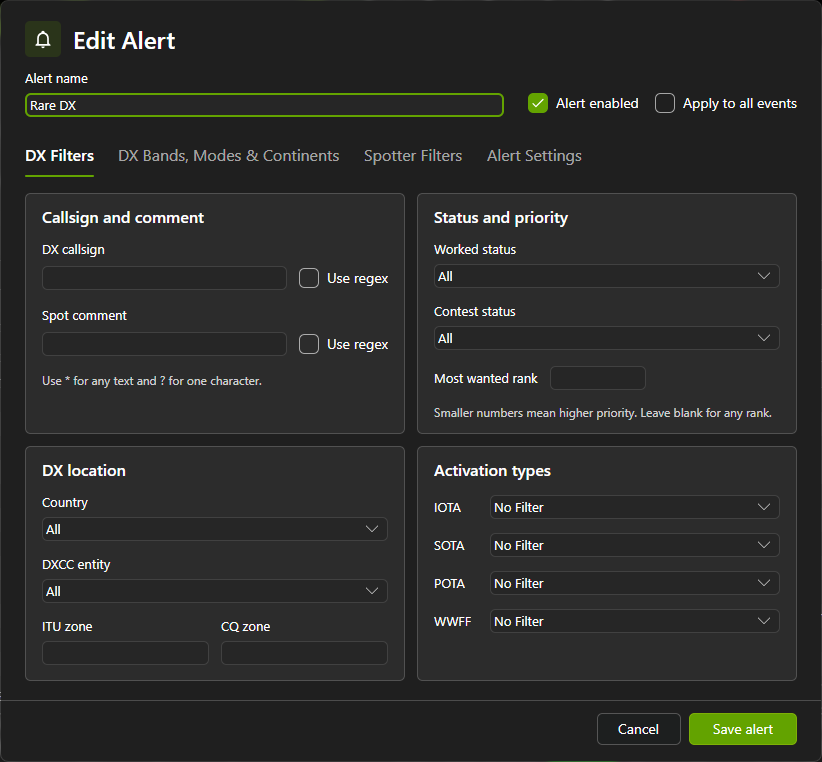
Alerts built around what you want to work
Not every incoming spot deserves your attention.
Create personalised alert definitions using criteria such as callsign, DXCC entity, worked status, continent, CQ or ITU zone, band and operating mode.
You can also filter using spot comments, contest information and Club Log most-wanted rankings, allowing alerts to focus on more specific DX opportunities.
For greater precision, QSO Director supports separate filtering of the spotted station and the reporting spotter, helping you control which reports are considered relevant.
Keep track of activations and wanted stations
DX hunting isn't limited to rare entities.
Configure alerts for activity associated with IOTA, POTA, SOTA and WWFF, or watch for specific callsigns and operating conditions.
For example, you might create one alert for a wanted DXCC entity, another for POTA activity on a particular band and a third for a station you're especially interested in working.
Each alert can have its own criteria, allowing you to monitor different operating interests at the same time.
Choose how QSO Director gets your attention
Different opportunities deserve different levels of attention.
QSO Director gives you control over how matching spots are highlighted and announced.
Choose from DX cluster highlighting with configurable colours, popup notifications, persistent alerts and audio notifications.
You can also configure notification display durations, helping you strike the right balance between staying informed and avoiding unnecessary interruptions.
Multiple alerts. One connected operating environment.
There's no need to limit yourself to a single alert configuration.
Create and enable as many DX alert definitions as you need, each monitoring its own selection of activity.
Keep an eye on new DX opportunities, activation references, wanted callsigns and particular bands or modes simultaneously.
With QSO Director monitoring incoming spotting information against your configured alerts, you can concentrate on operating while remaining aware of opportunities that matter to you.

Define what matters. Choose how you're notified. Keep your attention on the bands.
ONE CONNECTED OPERATING ENVIRONMENT
From spotting a station to logging the contact.
Finding an interesting station is only the beginning. What matters is how quickly and easily you can turn that opportunity into a contact.
QSO Director connects DX spotting, intelligent filtering, Band Maps, radio control and QSO Entry, helping you move naturally from discovering a station to working and logging it.
01

Discover
Discover the activity
Spots from multiple DX clusters, POTA activity and digital-mode decodes come together through QSO Director's unified cluster service.
02

Identify
Find what matters
Worked/needed information, intelligent filtering and configurable DX alerts help you identify stations worth your attention. Explore the activity through your Band Maps or geographic world map.
03
Work
Select and work the station
Found a spot you want to work? Select it from your Band Map to tune the associated radio and populate QSO Entry with the available station information.
04

Log
Complete your QSO
With the callsign and spot information already entered, you can concentrate on making the contact and completing your log entry.
One application. A connected operating experience.
Less time switching between tools. More time enjoying amateur radio.
FREQUENTLY ASKED QUESTIONS
Frequently asked questions about DX hunting and Band Maps
Discover how QSO Director brings DX clusters, Band Maps, intelligent filtering, geographic mapping and alerts together in one amateur radio logging application.